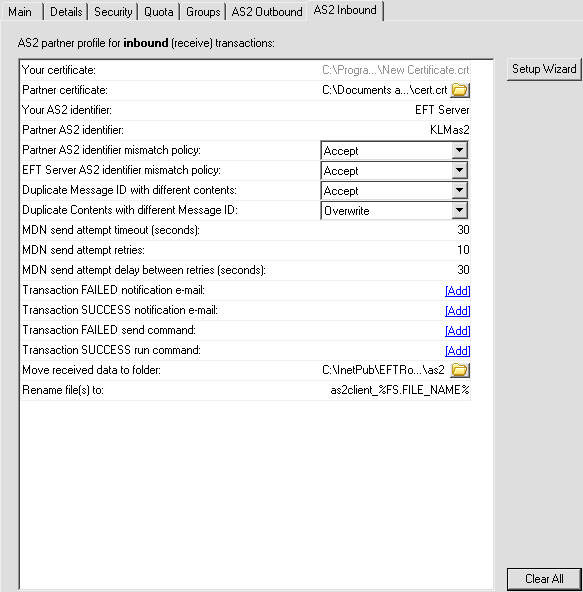
You can configure AS2 inbound transfers to move and/or rename files
after they are received. These settings, combined with setting Duplicate
Contents with different Message ID to Reject
will prevent received files of the same name and extension from being
overwritten.
In EFT Administrator, connect
to EFT Server and click the Server tab.
In the left pane, click the user (trading partner) that
you want to configure.
In the right pane, click the AS2
Inbound tab.
In the Rename file(s) to box, click in the far right
to activate the text box, then type characters and/or variables to change
the name of received files. Use %EVENT.DATESTAMP%
and %EVENT.TIMESTAMP%
to add the date and time to the file name. Use %FS.FILE_NAME%
for the name of the file.
For example, if you type:
%EVENT.DATESTAMP%_%EVENT.TIMESTAMP%_%FS.FILE_NAME%
A file transferred as dailyprogress.doc
on May 3, 2008 at 10:56:26 would be renamed to 05032008_105626_dailyprogress.doc.
 . The Browse
for folder dialog box appears.
. The Browse
for folder dialog box appears.