EFT Messages and Templates
EFT generates several different types of messages during operation, such as event rule actions and server-level notifications. Some messages can be edited within the administration interface, others must be edited within a text file that you create, and others are hard coded and not editable. The various messages and their uses are described below.
The Templates directory listed below is in the shared configuration directory for clusters, or \ProgramData\Globalscape\EFT Server\Templates\. Templates can be either HTML, TXT, or TPL, and all can be edited in a text editor.
-
EFT standalone template files were moved from the root of the local config directory to the "Templates" folder of the same location.
-
EFT HA template were files moved from the root of each node's local config directory to the "Templates" folder in the shared config directory. All nodes' now share a single copy of each template, instead of having their own copy locally.
-
Templates stored in the "HTTPMessages" folder have also moved to the "Templates" folder for both standalone and HA.
-
Upon upgrade from previous EFT versions to 8.1.0.11, new templates are created and old templates are moved to the local config\Backup\Templates Backup...\ directory. Therefor any customization to these templates will be lost on upgrade but are backed-up.
Email Templates on the Server > SMTP Tab
At the bottom of the SMTP tab is a table listing the email templates that you can edit or remove as well as add new templates.
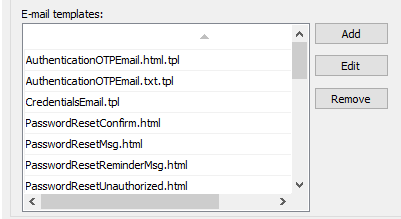
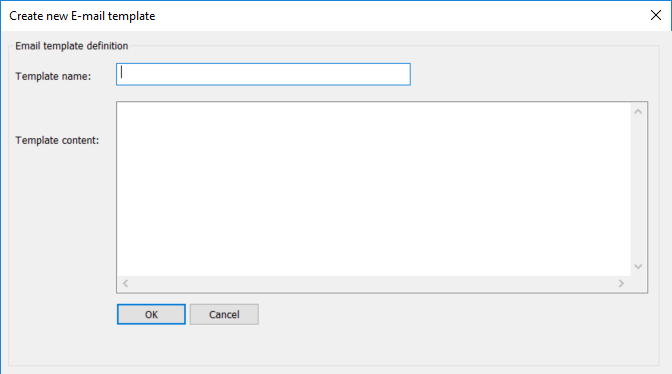
Add - Click Add to add a template. You can use HTML or plain text, and context variables and environment variables (with curly {{ }} brackets). View the existing templates for examples.
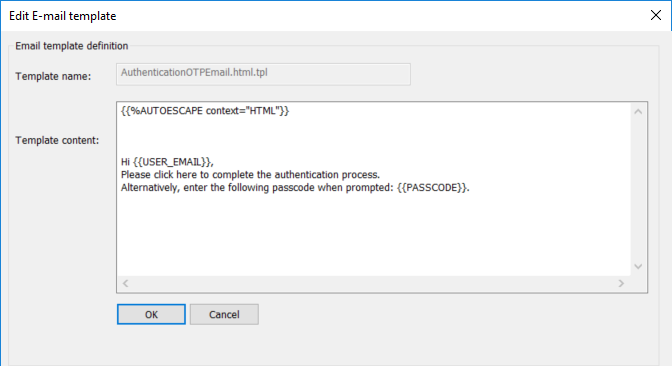
Edit - Click Edit to edit a selected template. Avoid deleting or changing any of the context variables and environment variables (with curly {{ }} brackets) that EFT uses. You can use HTML or plain text.
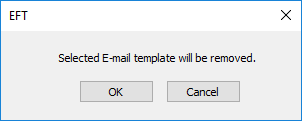
Remove - Click Remove to remove a selected template. A message appears to confirm that you want to remove the template.
The Templates directory contains the following templates:
-
AuthenticationOTPEmail.html.tpl or AuthenticationOTPEmail.txt.tpl - Sent for two-factor authentication in the send and reply portals
-
BAD_PARAMETER.htm - HTTP/1.1 406 Bad Parameter; The requested URL was not found on this server.
-
BAD_REQUEST.htm - HTTP/1.1 400 Bad Request
-
BAD_URI.htm -
-
CONFLICT.htm - HTTP/1.1 409 Conflict
-
CredentialsEmail.tpl - Sent when account credentials are created or modified.
-
FORBIDDEN.htm
-
INSUFFICIENT_STORAGE.htm
-
INTERNAL_SERVER_ERROR.htm
-
LENGTH_REQUIRED.htm
-
MAPPER_DENIED_ACCESS.htm
-
MAX_QUOTA_REACHED.htm
-
NOT_FOUND.htm
-
NOT_IMPLEMENTED.htm
-
PasswordResetConfirm.html - Sent when a user requests a password reset--applies to all users on the Server; but you can create Site-specific versions, as described at the link.
-
PasswordResetMsg.html - Notifies users after their password has expired
-
PasswordResetReminderMsg.html - Notifies users of their pending password expiration up to 30 days prior to the password expiration date
-
PasswordResetUnauthorized.html - Sent when a password change is requested but EFT has disabled password reset for the account
-
PATH_TOO_LONG.htm
-
PGPKeyExpirationError.txt - The key with fingerprint or ID: %keyid% expired on %expirationdate%
-
PGPKeyExpirationWarning.txt - The key with fingerprint or ID: %keyid% is set to expire %d% day(s) from now on %expirationdate%
-
PRECONDITION_FAILED.htm
-
REQUEST_TOO_LARGE.htm
-
SERVICE_UNAVAILABLE.htm
-
SSLCertExpirationError.txt - The SSL certificate: %certid% expired on %expirationdate%.
-
SSLCertExpirationWarning.txt -The SSL certificate: %certid% is set to expire %d% day(s) from now on %expirationdate%.
-
URI_TOO_LARGE.htm
-
UsernameResend.txt - Sent when a user requests the account username.
-
WorkspaceNotification.txt - When a user shares a folder, an invitation is sent to the user with whom the folder is shared. If the recipient does not have an account on EFT, the user can register the account.
-
WorkspacesAdminAddedParticipantMsg.html - When an administrator adds a participant to a shared workspace via the VFS tab in the administration interface, an email is sent to the user with a link to the workspace, along with the folder name and Workspace owner name.
-
WorkspacesInviteRegisterMsg.html - When a Workspace owner invites a user to join the workspace, an invitation is sent to the user with the Workspace owner's name and folder name.
-
WorkspacesInviteVerifyMsg.html - After a user has accepted the Workspace share invitation, EFT sends an account verification request.
-
WorkspacesOAIEmail.html, WorkspacesOAIEmail.txt, WorkspacesOAIEmailWithSecureMB.html, WorkspacesOAIEmailWithSecureMB.txt - When a user sends a file to another users via the EFT Outlook Add-In, EFT sends an email with a link to the Workspace location, rather than the actual file.
-
WorkspacesRequestFileEmail.html.tpl, WorkspacesRequestFileEmail.txt.tpl - {{SENDER}} has requested a file from you{{#SHOW_REPLY_ALL}} and others{{/SHOW_REPLY_ALL}}.
Refer to the following table for more information about EFT messages:
| Message | Description | |
|---|---|---|
| Sent when database connection errors occur | System message; not editable | |
| Connection Banner Message | When a client first connects to the Site via FTP, but before the user logs on, the connection banner appears. | Administration interface, Site > Connections tab > FTP/S Config > FTP Settings dialog box |
| Email Notification Message | Email sent with the Send Mail Action when an Event Rule is triggered. | Administration interface, Server node > Event Rules node > Event Rule |
| Invalid parameter count message | Sent when the number of parameters provided to execute a Custom command is not the correct number of parameters. | Administration interface, Command Settings tab of a selected Command, in the FTP Custom Command Specific dialog box. |
| Quit Session Messages | Message that appears when the client closes the session gracefully by using the FTP QUIT command. |
Administration interface, Site > Connections tab > FTP/S Config > FTP Settings dialog box |
| SSL Certification expiration warnings | Sent when SSL certificate is about to expire in n days, and when the certification has expired. | Administration interface, Site > Connections tab > SSL certificate settings, Configure > Expiration Notification > Configure > Certificate Expiration Notification dialog box. |
| User Limit Reached Message | Message that appears to the user when the maximum simultaneous connections limit is exceeded | Administration interface, Site > Connections tab > FTP/S Config > FTP Settings dialog box |
| Workspaces OAI Email sent | When a user sends a file to another users via the EFT Outlook Add-In, EFT sends an email with a link to the Workspace location, rather than the actual file. | EFT looks for the file WorkspacesOAIEmail.html, WorkspacesOAIEmail.txt, WorkspacesOAIEmailWithSecureMB.html, WorkspacesOAIEmailWithSecureMB.txt in the \Template\ directory. |
| Workspaces Request File | When a user requests a file from another user, EFT sends a request file message. | EFT looks for the file WorkspacesRequestFileEmail.html.tpl, WorkspacesRequestFileEmail.txt.tpl in the \Template\ directory. |
| WTC login error message | When a user provides the wrong username and/or password, the message "Not logged in" appears. The message is purposefully vague for security. | Hard-coded and not customizable. (Forgot username and Forgot password links allow the user to request assistance.) |
Customizing Email Notification Subject Lines
Overview
EFT now allows administrators to edit the email subject line for system generated notification emails that use SMTP email templates (for example, Workspaces invitations, password reset notifications, credentials emails, etc.).
This helps organizations:
-
Replace the default “EFT Administrator” style subjects with something more recognizable (e.g., “CFT File Sharing Notification”).
-
Reduce confusion or suspicion where “EFT” is commonly interpreted as “Electronic Funds Transfer.”
-
Align system emails with company branding and security policies.
This feature applies to Email templates under the SMTP settings, not to custom Event Rule “Send Email” actions.
What You Can Do
With this enhancement you can:
-
Edit the subject line of any existing email template.
-
Set a subject line when creating a new email template.
-
See each template’s subject line in the email template UI.
-
Rely on sensible defaults:
-
Existing templates are pre populated with the current live email subject that EFT uses today.
-
New installations use the sqlite Admin Server database table “EmailTemplate” column as the initial subject, unless updated.
-
Where This Is Configured
You manage email subjects in the SMTP Email Templates area of the EFT administration console (Admin Server).
Typical navigation:
-
Open the EFT Administration Console.
-
Connect to your Admin Server.
-
Go to Server > SMTP / Email Settings.
-
Select an Email Templates.
-
Click on Edit.
You will see:
-
The existing list of email templates.
-
A new Subject field associated with each template (visible in the template list dialog and the edit dialog).
Editing the Subject of an Existing Email Template
Use this when you want to change the subject for system generated notifications, e.g., Workspaces invitations or password reset emails.
-
In the Email Templates list, select the template you want to modify.
-
Example: CredentialsEmail.tpl (used for sending account credentials).
-
-
Click Edit.
-
In the template editor dialog, locate the Subject field.
-
For existing systems upgraded to this version, this field is pre-populated with the current (default) subject that EFT uses.
-
Example: Automated message from EFT administrator
-
-
-
Replace the existing text with your preferred subject, e.g.:
-
Secure Credentials from MyCompany Administrator
-
Your New File Transfer Account Details – <Your Company Name>
-
-
(Optional) Update the email body if needed (as before).
-
Click OK.
-
Apply or save changes in the admin console if prompted.
Result: All future emails that use this template will use your new subject line.
Creating a New Email Template with a Subject
When you add a new template, you must now provide a subject.
-
In the Email Templates list, click Add / New Template.
-
Provide:
-
Template Name (e.g., WorkspaceRegistrationNotification.tpl).
-
Subject (plain text), for example:
-
You’ve Been Added to a MyCompany Workspace
-
-
Body content as usual.
-
-
Click OK.
Result:
-
The template is added to the list with its subject.
-
When EFT sends an email using this template, the configured subject is used.
Behavior for Existing vs. New Installations
Existing Installations (Upgraded to 8.3.2.x)
-
For all existing templates, EFT:
-
Determines the current subject used for the notification (e.g., “Automated message from EFT administrator” for credentials emails).
-
Pre populates the Subject field for that template with this value.
-
-
This ensures there is no change in behavior until you explicitly edit the subject.
New Installations
-
At install time, EFT uses the sqlite Admin Server database table “EmailTemplate” as the default subject value in the UI for each template.
-
You can leave these as is or customize them immediately (via the Admin GUI).
-