
For information about Globalscape, visit www.globalscape.com. |
|
|
For information about Globalscape, visit www.globalscape.com. |
|
Users can request access to EFT Web Admin using an administrator-supplied URL. The URL can be found on the Account Requests page. You can invite users to request access and email them the URL. After the request is submitted, and administrator user must approve it.
The request an account procedure below can be mailed to the potential user. Be sure the requestor knows which Settings Template (External Label) to select when creating the account.
To request an account
Open a web browser to the URL provided by the administrator (e.g., https://mycompany.com:433/EFTWebAdmin/request/). The Request New EFT Account dialog box appears.
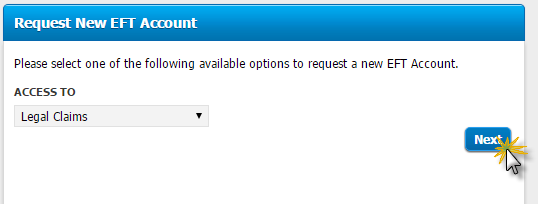
In Access to, click the Settings Template to which you want to connect, then click Next.
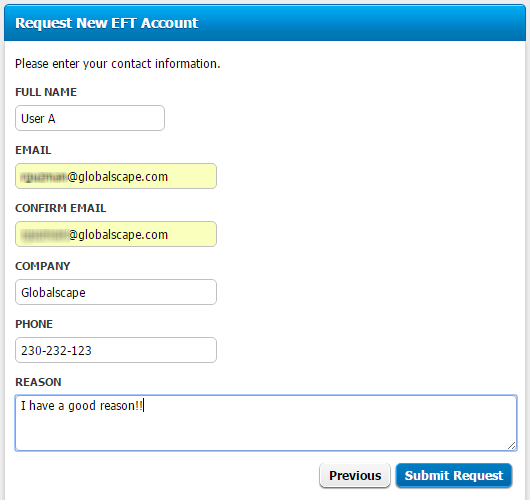
Complete the form, then click Submit Request. A success message appears.
The administrator will get a notice that the account is pending approval and you (the requestor) will receive an email that contains a link to check the status of the request.
Login in to EFT Web Admin.
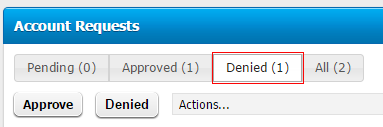
Click Account Approval. The Account Requests page appears.
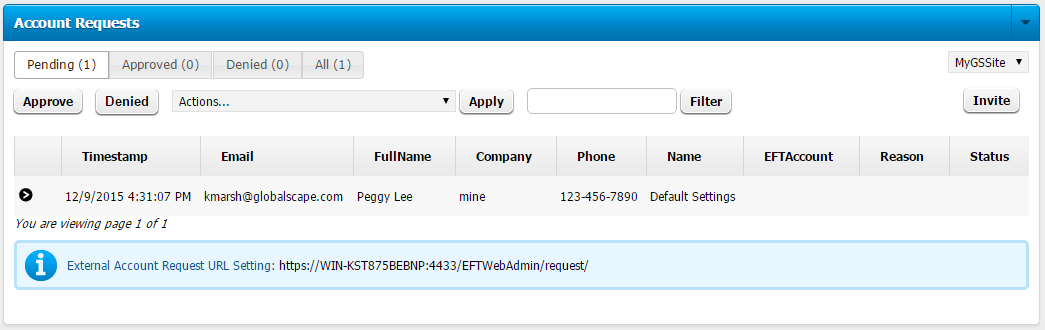
Click the account that you want to approve then do one of the following:
To approve the request, click Approve. A successful message appears at the top of the page.
To deny the request, click Denied. The Denied Notes dialog box appears.
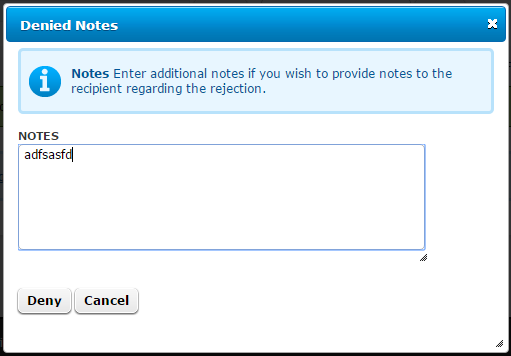
Provide an explanation as to why the account is denied (optional) and then click Deny. A successful message appears at the top.
You can review denied requests by clicking Denied.
To invite a user to create an account
Login in to EFT Web Admin.
Click Account Approval. The Account Requests page appears.
Click Invite. The Send Invite to Create an Account dialog box appears.
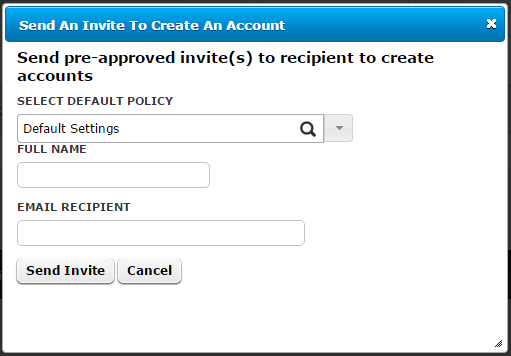
Provide the name and email of the invitee, then click Send Invite. An invite is sent to the email address with a link to create an account.
|
This online help file is for EFT WebAdmin. For other help documentation, please refer to http://help.globalscape.com/help/index.html. (If the Index and Contents are hidden, click Show Contents pane in the top left corner of this topic.) |
