Work with Action Schedules
Action Schedules allow different actions to be invoked at different dates and times. For example, it could allow you to send an alert to a user’s message queue during working hours but send it to a cell phone out of hours. Action schedules can also allow the sequencing of actions based upon the condition of a previous action having completed.
To work with action schedules, select option 10=Work with Action Schedules from the Configuration menu.
The Work with Action Schedules display shows the available action schedules and provides options and functions for creation and maintenance.
How Action Schedules are resolved
When an action schedule is invoked, the schedule entries in the schedule are checked in the order they are listed. Either the first or all schedule entries found that include the current date and time become the effective entry.
You can check the coverage provided by any schedule entry by using the calendar view.
To do this:
-
Select option 5=Display on the action schedule
-
Select option 1=Calendar View on the required schedule entry.
The calendar view highlights the days on which the selected schedule entry is fully or partially effective. To check the coverage times for a particular day, use the View Day option (key the option over the required day and press Enter.
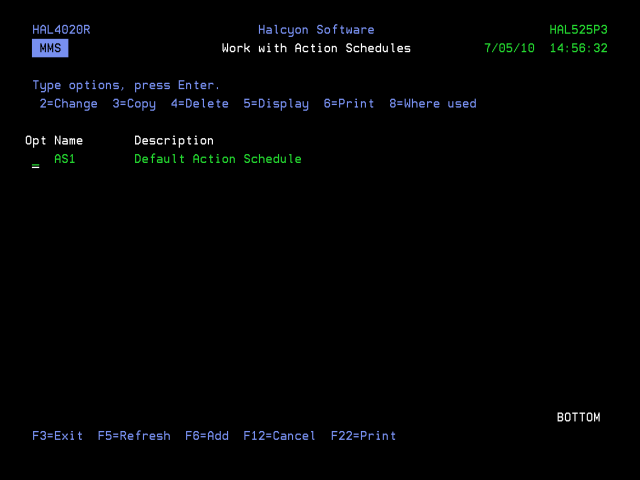
Parameters on the Work with Action Schedules display
The following parameters are shown on the Work with Action Schedules display.
Name
Specifies the name of the action schedule.
Description
Specifies the description of the action schedule.
Using the Work with Action Schedules display
The following options are available when working with the action schedules. Type the option number in the Opt column against the required selection.
Change
Use option 2=Change to open the Change Action Schedule display where it possible to amend all settings of the selected action schedule except the name.
Schedules are resolved according to their defined sequence. Therefore, when an alert invokes an action schedule, the first schedule entry found that includes the current date and time is the effective entry.
To re-order the list of schedule entries, type new sequence numbers against the existing schedule entries and press Enter.
Copy
Use option 3=Copy to open the Confirm Copy of Action Schedule display and create a new action schedule based upon the existing schedule against which the copy action was taken. Enter a name for the new action schedule and press <Enter>. You can also copy individual actions within an action schedule. See Copying specific actions from within an action schedule for more information.
Delete
Use option 4=Delete to open the Confirm Delete of Action Schedule display. Press Enter to confirm the deletion of the action schedule.
Display
Use option 5=Display to open the Display Action Schedule display. This displays the current values of the action schedule but does not allow change.
Use option 6=Print to print a detailed action schedule report for the selected action schedule.
Where used
Use option 8=Where used to open the Display Action Schedule Where Used window.
This window lists the actions that use the selected action schedule.
The following functions are available when working with action schedules:
F3=Exit
Use F3=Exit to close the current display and return to the main menu.
F5=Refresh
Use F5=Refresh to update the display with current information.
F6=Add
Use F6=Add to open the Create Action Schedule display from where a new action schedule can be created. See Creating an Action Schedulefor more information.
F12=Cancel
Use F12=Cancel to exit this display and return to the previous display.
F22=Print
Use F22=Print to print a detailed action schedule report for all the action schedules defined on the system.