Adding Monitor Rules
Once it has been decided on the information to be monitored, or in some cases (more importantly), information that you want to ignore, the following needs to be entered:
- What needs to be monitored (full monitor descriptions can be found in the section Network Server Suite Monitors).
- The frequency with which the checks are made.
To add a monitor rule:
- From the Systems panel in the left navigation pane of Central Configuration Manager, select the monitor to which the rule will be added.
- From the Monitor Summary panel, click Add Rule, to start the process of adding rules to a selected monitor. The Add Rule Detail dialog is displayed.
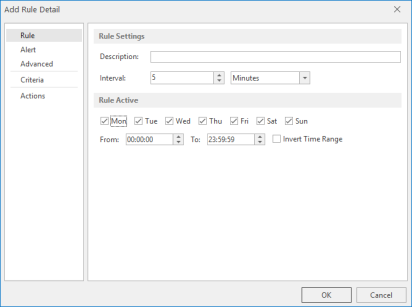
The Add Rule Detail dialog contains five tabs that allow you to specify the following:
- Rule Tab: The Rule tab is used to specify general rule settings
- Alert tab: The Alert tab is used to specify the default alert detail settings
- Advanced tab: The Advanced tab is used to specify rule suspension settings
- Criteria Tab: The Criteria tab is used to specify the criteria that trigger an alert if met
- Actions Tab: The Action tab is used to specify the actions that occur when an alert is triggered
Rule Sequence Numbers
Each rule is given its own unique sequence number within the Monitor in which it is created.
NOTE: During rule configuration you can be as simple or as complex as you wish. Rules are run in the numerical order in which they are listed under each monitor.