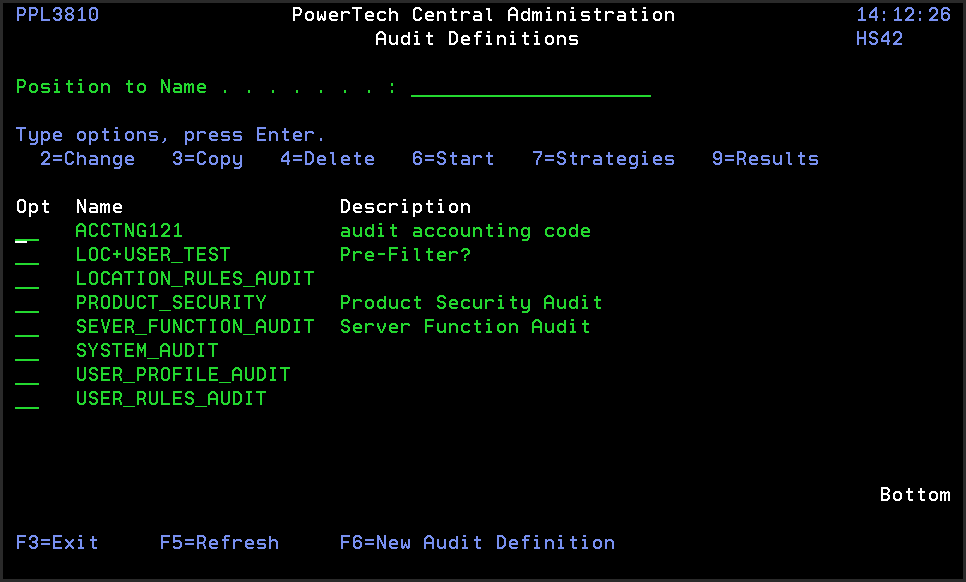
Audit Definitions panel
How to Get There
From the Powertech Main Menu, choose option 80, Central Administration, then choose option 5, Auditing Menu. Choose option 1, Audit Definitions.
What it Does
The Audit Definitions panel lists all the audits that have been defined in Central Administration.
Options
2=Change: Displays the Change Audit Definition panel, where you can change the name or description of an existing audit.
3=Copy: Displays the Copy Audit Definition panel, which copies an existing audit. Enter a description and name for the new audit.
4=Delete: Allows you to delete the selected audit. A confirmation panel displays asking you to confirm the deletion.
6=Start: Starts an audit. You're asked to select a system group for the audit; Central Administration then runs the audit against the systems in the group.
7=Strategies: Allows you to select an audit strategy. You must select an audit strategy before you can run an audit.
9=Results: Displays the Audit Results panel, which shows all instances of the selected audit. To position the Audit Results display to a specific date and time, enter the date and time you want to see at the top of the panel.
To define a new audit, press F6, New Audit Definition, and enter a name and brief description for the audit on the Create Audit Definition panel.