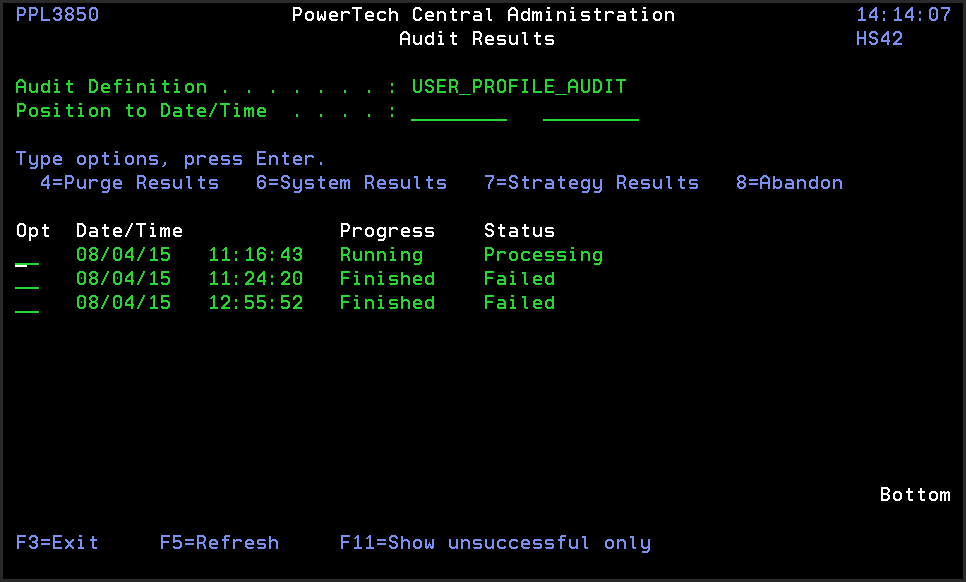
Audit Results panel
How to Get There
In the Audit Definitions panel, enter 9 for an Audit Definition that has been run.
What it Does
The Audit Results panel shows all instances of the selected audit that have been run and the status of each audit. To position the Audit Results display to a specific date and time, enter the date and time you want to see at the top of the panel.
Options
4=Purge: Purges all Audit Item Results for the selected execution of the Audit.
6=System Results: Displays the Audit System Results panel, which shows the status of the audit for the system on which it was run.
7=Strategy Results: Displays the Audit Strategy Results panel, which shows the status of the audit for the selected audit strategy (currently User Rules Settings).
From each System Results panel (displayed by entering option 6 next to each audit strategy), you can display the other type of audit results. Then, you can select option 5, Item Results, to see each item that was checked during the audit and the results for each.
To see detailed information about an audited user rule, enter a 5 next to the Item Name to display a more complete description of why the audited item passed or failed the audit, allowing you to make adjustments, as needed. If the text of the Message is too long, press F10 to display the complete message. Press F20 to display further details on the audited item, including a side-by-side comparison of the Management System's values and the Endpoint's values.
The F11 key acts as a toggle to display all audits or only those that were not successful, making it easier to identify the items you need to review.