Creating Tasks Without Add Managed Task Wizard
Overview
The Add Managed Task Wizard helps guide you through the steps of creating a task. However, once you have become more familiar with Automate Desktop and better experienced with the task creation process, you may wish to opt out of using the Add Managed Task Wizard, and instead, utilize the manual approach.
To disable the Add Managed Task Wizard
Do one of the following:
-
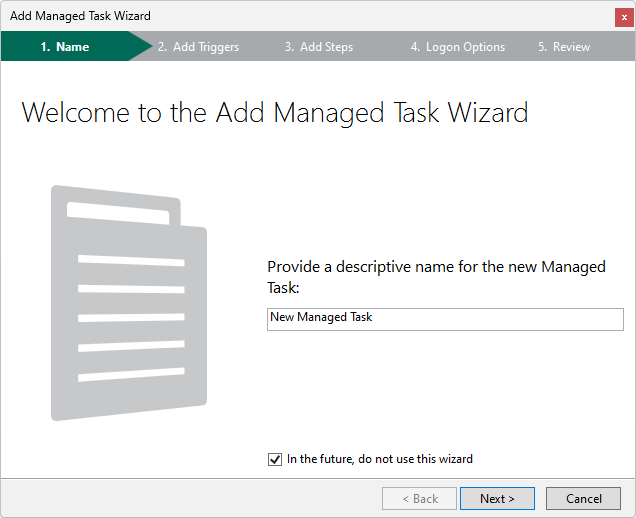
From the Task Administrator, navigate to the Tasks section and click New located on the top panel, or right-click anywhere inside the main panel, and then select New > Managed Task from the shortcut menu. The Welcome page of the Add Managed Task Wizard is displayed.
-
Select In the future, do not use this wizard and click Cancel.
Or
-
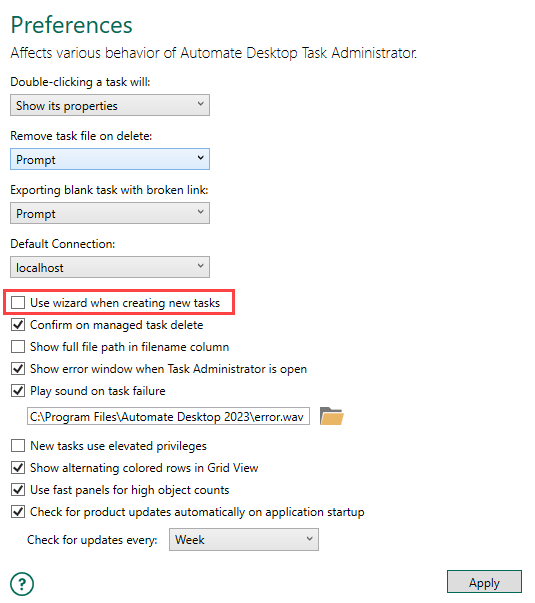
From the Task Administrator, navigate to Options > Preferences.
-
Disable Use wizard when creating new tasks click Apply.
To create a task without the Add Managed Task Wizard:
-
From the Task Administrator navigation bar, click Tasks.
-
Select which Automate Desktop client you want to create a new task on. Automate Desktop supports creation of tasks that reside on a remote client (or Runtime), however, there are limitations. See Managing Remote Tasks for more information.
-
Select the folder to create the new task in. To create a new folder, see Organizing Tasks & Folders.
-
Click New from the top panel or right-click an empty section in the main panel and select New > Managed Task from the shortcut menu. A new task icon appears in the Main panel.
-
Type a unique name for the task.
-
To assign one or more triggers, right-click the new task and Edit Triggers.
-
To edit specific properties, right-click the new task, and click Go to > [Property Name] where Property Name is the name of the property you want to edit.
-
To add steps, right-click the new task and click Edit Steps. The Task Builder is displayed where you can add the steps of the task.
-
Click Update and Close.