Adding Task Steps
Overview
Once in the Task Builder, task construction can start by dragging the desired action from the Available Actions pane onto the Steps panel (as shown below). Doing so will open a properties dialog for that action where parameters and specifications can be defined. Each type of action has its own set of properties. Specific actions may contain multiple activities to select from. Choosing the desired activity will populate the dialog with the proper properties and settings of that activity.
To add steps
-
In the Actions panel of the Task Builder, find the action/activity you want to add. You can find an action by selecting the plus sign (+) on any of the categorized folders, or by entering the name of the action or activity in the Search for action text box at the foot of the Actions panel. When you use the Search for action text box, the actions list is filtered as you type to include only those actions/activities that contain a match for the entered text (see Finding Actions for more details).
-
Drag the action/activity to the Steps panel or double-click the action/activity. The properties dialog for that action is displayed.
-
Enter properties and click OK. The action/activity becomes a step in your task. Repeat this process to add additional steps in sequence.
-
To change the sequence of the steps, select the step you want to move and use the arrow buttons on the toolbar to move it up or down (for more information, see Editing Task Steps).
-
To delete a step, right-click it, and then select Delete.
-
Click Run to test the task.
-
Select Save and Close to save changes and close Task Builder.
Using add/insert option
The ribbon Actions command group contains commands that can be used to add or insert a step.
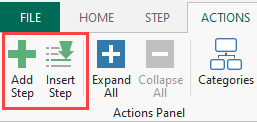
To add an action as the last step
- From the Actions panel, select the action/activity to add.
- From the ribbon, under the Actions tab, click Add Step.
To insert an action in between steps
- From the Actions panel, select the action/activity to insert.
- From the Steps panel, select the step that you want the new action/activity to be inserted.
- From the ribbon, under the Actions tab, click Insert Step. The new action is inserted directly below the selected step.