Creating Reports
You can generate reports from these access points in Fortra VM:
-
Active View: aggregate reports
-
Scan Activity: single scan reports
-
Reports: all report types (for example, Active View, single scan, scan group, multi-scan, audit)
Once you are in the report generation screen, you can use the toggle options to include or exclude information from the report. Available toggle options will depend on the report type and template.
In additional to per-client report templates, there are a variety of Managed Accounts report templates that provide information about all your managed accounts in a single report.
| Report Name | Description |
|---|---|
| Historical Lineup Usage Rollup CSV Export | Exports all managed account usage activity including live IPs, scanned IPs, and resident IPs. |
| Managed Account Overall Status at a Glance Report | Shows managed account's overall status such as Security GPA trends and most common vulnerabilities found among clients. |
| Managed Accounts All Users CSV Export | Exports all managed account users with details of user account status and usage activity. |
| Managed Accounts Audit Log CSV Export | Exports all account auditing logs. |
| Managed Accounts AV Usage CSV Export | Exports all managed accounts with details of Active View (AV) usage compared with contracted values. |
| Managed Accounts Invalid Subscription CSV Export | Exports all managed accounts and subscription statuses that are either invalid or missing (e.g., accounts with no subscription at all). |
| Managed Accounts Overview CSV Export | Exports all managed accounts with statuses including login, subscription, etc. |
| Managed Accounts PCI Compliance Reports CSV Export | Exports all PCI Compliance Report details. |
| Managed Accounts RNA Status CSV Export | Exports all managed accounts' RNA usage details. |
| Managed Accounts Security GPAs CSV Export | Exports all managed accounts' Security GPAs and asset count details. |
| Managed Accounts Subscription Renewals CSV Export | Exports all managed accounts and subscription statuses that are either invalid or missing (e.g., accounts with no subscriptions at all). |
| Managed Accounts Subscription Usage CSV Export | Shows exports all managed accounts subscription usage details by service edition listing current and historical usage and overages. |
| Managed Accounts Users CSV Export | Exports all managed accounts user usage details. |
| Managed Account Top Rated Vulnerabilities Report | Shows managed accounts' top rated vulnerabilities aggregated for managed customers. |
| Managed Account Top Vulnerabilities Report | Shows managed accounts' top vulnerabilities aggregated for managed customers. |
| Managed Account Usage Trending Report | Shows managed accounts' high-level information such as current IP usage and account sizes. |
You can view all available report templates by navigating to Reports > Report Templates.
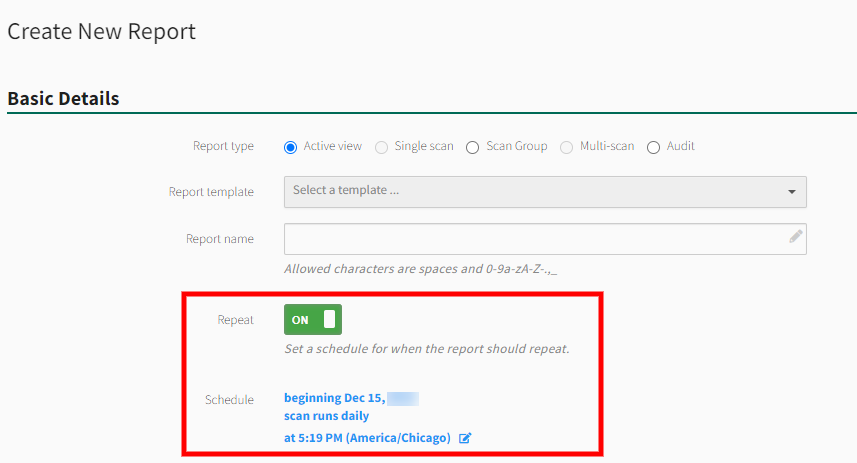
Scheduling Reports
You can use the Repeat toggle to schedule reports to be regenerated at your desired frequency.
Emailing Reports
You can have reports automatically emailed to recipients upon report completion. If you would like the report to be emailed to all report notification recipients on the account, simply use the Email Reports toggle. If you prefer to choose a subset of recipients, Use the Limit Reports Email toggle and Additional Users selection to limit the email to select recipients.

For a full guide on generating a report, see Client Account Maintenance.