Globalscape Support Center
If you are having a transfer or connection problem, contact your Internet Service Provider. Before contacting them, enable consolidated transfer logs, reproduce the problem, then copy and paste the entire log in to our online support request form or email. (Globalscape cannot tell you which server to log in to, what your login credentials are (username/password), and which folders on the server you have permissions to. Only your ISP has that information.)
If you are having a problem with CuteFTP, visit the CuteFTP support pages for downloads, documentation, activation instructions, and the latest news regarding CuteFTP. Our Customer Service team can answer your questions about software activation and registration or help with order problems. If you need technical assistance with your software, submit your question to the Technical Support team. However, before you contact Technical Support, please access our online help resources:
-
The Globalscape User Forum is a great place to find information or seek help from the global community of Globalscape customers and product experts.
-
The Globalscape Knowledgebase (KB) is a database of information on our products.
-
Subscribe to the RSS feed to keep abreast of the latest KB articles. Copy and paste this URL http://kb.globalscape.com/rssfeed.aspx into your RSS feed reader. (See below for examples.)
-
Subscribe to Globalscape Email Announcements Sign up for the Globalscape Newsletter, press releases, product announcements, and other Globalscape news.
-
Recover a Lost Serial Number - If you know the email address you used when you activated the software, we can send it to you at your new address.
To add the Globalscape Knowledge Base RSS feed to your Google home page
The procedures below are provided as an example; see your feed reader's online help for specific instructions.
-
Sign in to your Google home page, then, in the upper right area of the page, click Add Stuff.
-
At the top center of the page, to the right of Search Homepage Content, click Add by URL. The Add by URL form appears.
-
In the text box, provide the URL of the RSS feed, http://kb.globalscape.com/rssfeed.aspx, then click Add.
-
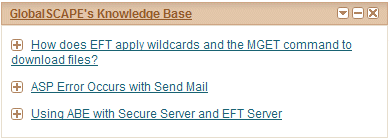
In the upper left corner, click Back to Homepage. The Globalscape RSS feed appears on your home page.
To add the RSS feed to Microsoft Outlook 2007
-
On the main menu, click Tools > Account Settings.
-
On the RSS Feeds tab, click New.
-
In the New RSS Feed dialog box, type or paste the URL of the RSS Feed. For example, http://kb.globalscape.com/rssfeed.aspx.
-
Click Add.
-
Click OK.
Microsoft Office Online provides a tutorial on RSS feeds.
Related Topics