Work with Message Sub-Consoles
Message sub-consoles are used to subdivide the alerts on systems that receive a large volume of alerts. Alerts and messages can be directed to a specific console when sent.
Message sub-consoles are available for viewing within Message Console, in addition to the Alerts and Systems views.
The Work with Message Sub-Consoles display, accessed by taking option 15=Work with Message Sub-Consoles from the Configuration menu lists the Message sub-consoles that have been defined and provides functions and options for maintaining them.
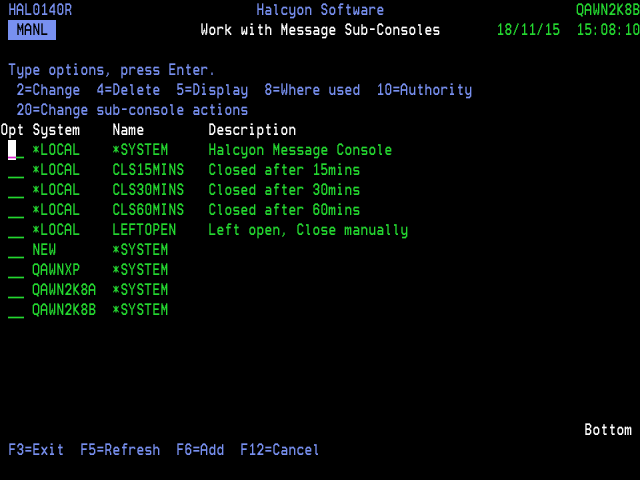
Parameters on the Work with Message Sub-Consoles Display
The following parameters are shown on the Work with Message Sub-Consoles display.
Name
Displays the name of the Message sub-console.
Description
Displays the textual description of the Message sub-console,
The following options are available when using the Work with Message Consoles display. Type the required option number against the chosen Message sub-console and press Enter.
Change
Use option 2=Change to open the Change Message Console display from where you can change the parameters of an existing Message sub-console. The parameters on this display are the same as those used when adding a Message sub-console. Please see the chapter Adding a Message Sub-Console for further information relating to these parameters.
Delete
Use option 4=Delete to open the Confirm Delete of Message Sub-Console display. Press Enter to confirm the deletion or F12=Cancel to return to the previous display.
Display
Use option 5=Display to open the Display Message Sub-Console display from where you can view (but not amend) the details of an existing Message sub-console.
Authority
Use option 10=Authority to open the Work with Item Authority display allowing you to maintain the item level user authorities to the CONSOLE function.
Change console actions
Use option 20=Change Console Actions to open the Display Console Actions Display.
The following functions are available when using the Work with Message Sub-Consoles display.
F3=Exit
Use F3=Exit to close the current display and return to the main menu.
F5=Refresh
Use F5=Refresh to update the display with current information.
F6=Add
Use F6=Add to open the Add Message Sub-Console display from where a new Message sub-console can be created. See ‘Adding a Message Sub-Console’ (below) for more information.
F12=Cancel
Use F12=Cancel to exit this display and return to the previous display.