Task Builder Quick Reference Guide

The Task Builder is used to visually construct and examine the steps that an Automate Desktop task should carry out when it is run (either manually or automatically with the use of a trigger). Task steps are created by visually dragging-and-dropping Automate Desktop activities from an actions palette and placing them in the sequence desired for execution. This eliminates the need to write code or create batch files. A task can be composed of a single activity or hundreds of activities, depending on what it is designed to perform.

To ensure that newly created tasks are working properly before they are put into production, the Task Builder includes a variety of testing and debugging features that provide detailed, real time information about a running task, which aids a developer in monitoring and debugging tasks as they are being constructed.

What the Task Builder accomplishes

Task Builder is the primary interface used to construct and test the steps of a task. It contains a variety of debug tools to allow developers to conveniently examine tasks while they are being constructed. Task Builder operations include the following:

What the Task Builder does not accomplish

The Task Builder is used to build and test task specific steps that should be carried out when the task is run (or triggered automatically). However, it does not handle the creation of a task, triggering (such as scheduling the task to run automatically) or system settings. For this, use the Task Administrator.

Task Builder Quick Reference Guide

ClosedAccessing the Task Builder

To access the Task Builder:

You can access the Task Builder interface in several different ways depending on the scenario:

  • Creating a new task - From Task Administrator, create a new task by clicking New on the top panel. This opens the Add Task Wizard where you can open Task Builder by clicking Create Steps on the Create Steps portion of the wizard.

  • Editing an existing task -  From Task Administrator, select the task you want to edit and click Edit on the top panel or right-click the task and select Edit Steps from the shortcut menu that appears.

  • Opening Task Builder directly - You can open Task Builder directly from the Windows Start button or from its location in the Automate Desktop program folder. The default location is C:\Program Files\Automate Desktop 2025\AMTB.exe.

ClosedFinding available actions/activities

To find available actions/activities:
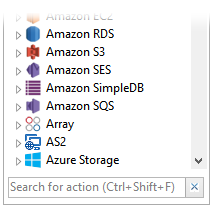
  1. From the Task Builder Actions panel, click inside the Search page or press Ctrl + Shift + F on your keyboard.

  2. Enter all or part of an action name. The list is updated as you type each letter.

ClosedAdding steps to a task

To add steps to a task:

  1. Drag an action/activity from the Actions panel onto the Steps panel or simply double-click the action/activity. The Properties page is displayed.

  2. Enter required properties for the activity and click OK. The activity then becomes a step in your task.

ClosedViewing or editing task steps

To view or edit task steps:

  1. From the Steps panel, do one of the following:

    1. Double-click the task step.
    2. Right-click the step and click Edit from the shortcut menu.
    3. Highlight the step and click Edit on the ribbon.
  1. View or edit the properties displayed in the step Properties page.
  2. Click OK.

ClosedManually run one or more steps

To manually run one or more steps:
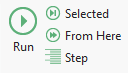
You can manually run one or more steps from Task Builder for testing and debugging purposes:

  • To run all available steps, click Run or Run All on the ribbon or press F5 on your keyboard.
  • To run selected steps, from the Steps panel, select the desired steps (hold down Ctrl during selection) and click Run Selected or press Ctrl + F5 on your keyboard.
  • To start execution from a specific step, select the step to start from and click Run from Here or press Shift + Ctrl + F5 on your keyboard.
  • To run each step one-by-one, select Step or press F9 on your keyboard. Do the same to run the next step and each subsequent step thereafter.

ClosedDisabling certain steps from running

To disable certain steps from running:

  1. From the Steps panel, select the steps to disable. To select more than one step, hold down Ctrl on your keyboard during selection.

  2. Do one of the following:
    1. Click Disable on the ribbon.
    2. Right-click the highlighted steps and click Disable from the shortcut menu.
  1. Follow the same instructions above to re-enable disabled steps.

NOTE: Disabled steps dimmed and will be omitted from running during task execution.

ClosedSaving your task

To save your tasks:

You can save your task with or without closing Task Builder. In addition, you can save a copy of your task in the location of your choice:

  • To save without closing Task Builder, from the Quick Access Toolbar (located above the ribbon by default), click the Save icon or press Ctrl + S.

  • To save and close Task Builder, click Save and Close on the Home tab of the ribbon.

  • To save to a separate location, from the ribbon, click File > Save Copy As.

To find available actions/activities:

To add steps to a task:

To view or edit task steps:

To manually run one or more steps:

To disable certain steps from running: