Message Console - Consoles view
Message sub-consoles are used to subdivide the alerts on systems that receive a large volume of alerts. Alerts and messages can be directed to a specific console when sent and different users can be restricted to specific sub-consoles. For example, you may set-up separate sub-consoles for the Finance, Sales and Technical departments with different alerts in each and users restricted to the alerts within the sub- console applicable to their role.
The Message Console - Consoles view lists the sub-consoles that have been defined in the Work with Message Consoles display and indicates the status of each console. If no sub-consoles have been defined, only the default *SYSTEM console is shown. Each console is displayed in the color of the highest severity open alert if using *SEV color control. This allows you to see at a glance whether any alerts, and if so their severity, are pending for each console. If using *SYS color control, the image is red reverse image if any open alerts exist, otherwise it is colored green. See system default HAL/CONDFTCOLORCTRL for more information.
To switch to the alert display, use F10=Alerts to display all alerts or use 1=Display Alerts to display only the alerts for the selected sub-console.
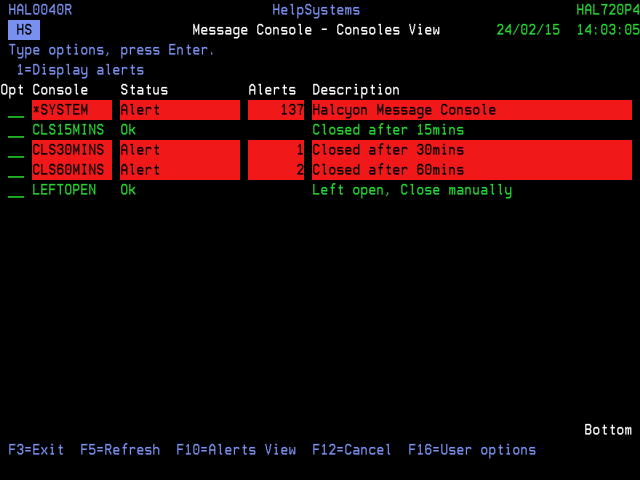
Parameters on the Message Console - Consoles View display
The following parameters are shown on the Message Console - Consoles View display.
Console
Displays the name of the console as defined in Work with Message Sub-Consoles. *SYSTEM indicates the local system.
Status
Displays the current system status.
| OK | Indicates that there are no alerts for this console |
| Alert | Indicates that there are alerts pending for this console |
Alerts
Displays the number of open alerts for each sub-console, excluding CON alerts.
Description
Displays the textual description of the sub-console as defined in Work with Message Sub-Consoles.
Using the Message Console - Consoles view
The following options are available when working with the Message Console - Console view. Type the option number in the Opt column against the required selection.
Display alerts
Use option 1=Display alerts to switch to the Message Console Alerts view, subsetted on the selected console.
The following functions are available when working with the Message Console - Consoles view:
F3=Exit
Use F3=Exit to close the current display and return to the main menu.
F5=Refresh
Use F5=Refresh to refresh the display with current information.
F10=Alerts
Use F10=Alerts to switch the Console view from Systems to Alerts.
F12=Cancel
Use F12=Cancel to close and current display and return to the previous display.
F16=User options
Use F16=User options to open the User Options display which allows user preferences to be set.